
 首页
首页
# 首页
# 创建 home 分支
git checkout -b home
# 配置网络请求
由于平台的限制,小程序项目中不支持 axios,而且原生的 wx.request() API 功能较为简单,不支持拦截器等全局定制的功能。因此,建议在 uni-app 项目中使用 @escook/request-miniprogram 第三方包发起网络数据请求。
请参考 @escook/request-miniprogram 的官方文档进行安装、配置、使用
官方文档:https://www.npmjs.com/package/@escook/request-miniprogram
在项目目录下初始化 npb 并安装 request-miniprogram
npm init
npm install @escook/request-miniprogram
2
在 main.js 中导入模块 并测试拦截器
//导入网络请求的包
import {
	$http
} from '@escook/request-miniprogram'

uni.$http = $http

//请求根路径
$http.baseUrl = 'https://www.uinav.com'

//请求拦截器
$http.beforeRequest = function(option) {
	uni.showLoading({ //展示加载
		title: '数据加载中...'
	})
}

//响应拦截器
$http.afterRequest = function(option) {
	uni.hideLoading() //关闭加载
}
2
3
4
5
6
7
8
9
10
11
12
13
14
15
16
17
18
19
20
21
22
# 轮播图
# 请求轮播图的数据
在 data 中定义轮播图的数组
data() {
			return {
				//轮播图列表
				swiperList: []
			};
		}
1
2
3
4
5
6在 onLoad 生命周期函数中调用获取轮播图数据的方法
onLoad(){
			//创建钩子 获取轮播列表
			this.getSwioerList()
		}
1
2
3
4在 manifest.json 将微信小程序的 ES6 转 ES5 开启
在 methods 中定义获取轮播图数据的方法
methods: {
		async getSwioerList() {
			const { data: res } = await uni.$http.get('/api/public/v1/home/swiperdata');
			// console.log(res)
			//请求失败
			if (res.meta.status !== 200) {
				return uni.showToast({
					title:'数据请求失败', // 提示框内容
					duration: 1500, //提示框多久消失 毫秒
					icon:'none'  //提示框图标
				});
			}
			this.swiperList =res.message
			// console.log(this.swiperList)
		}
	}
1
2
3
4
5
6
7
8
9
10
11
12
13
14
15
16
# 渲染轮播图的 UI 结构
在 home.js 模块标签中使用 swiper 标签展示轮播图
uni-app 可以使用 usw 快速生成 uni swiper 模块代码
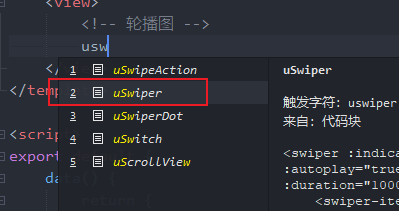
<template>
	<view>
		<!-- 轮播图 -->
		<swiper :indicator-dots="true" :autoplay="true" :interval="3000" :duration="1000">
			<swiper-item v-for="(item,i) in swiperList" :key="i">
				<view class="swiper-item">
					<image :src="item.image_src"></image>
				</view>
			</swiper-item>

		</swiper>
	</view>
</template>
1
2
3
4
5
6
7
8
9
10
11
12
13轮播图样式
<style lang="scss">

swiper{
	height: 330rpx;
	.swiper-item,image{
		width: 100%;
		height: 100%;
	}
}
</style>
1
2
3
4
5
6
7
8
9
10
# 配置小程序分包
分包可以减少小程序首次启动时的加载时间
在项目根目录中,创建分包的根目录,命名为
subpkg在
pages.json中,和pages节点平级的位置声明subPackages节点,用来定义分包相关的结构:"subPackages": [ { "root": "subpkg", "pages": [] } ]1
2
3
4
5
6在
subpkg创建页面 goods_detail 选择 subpkg 为分包目录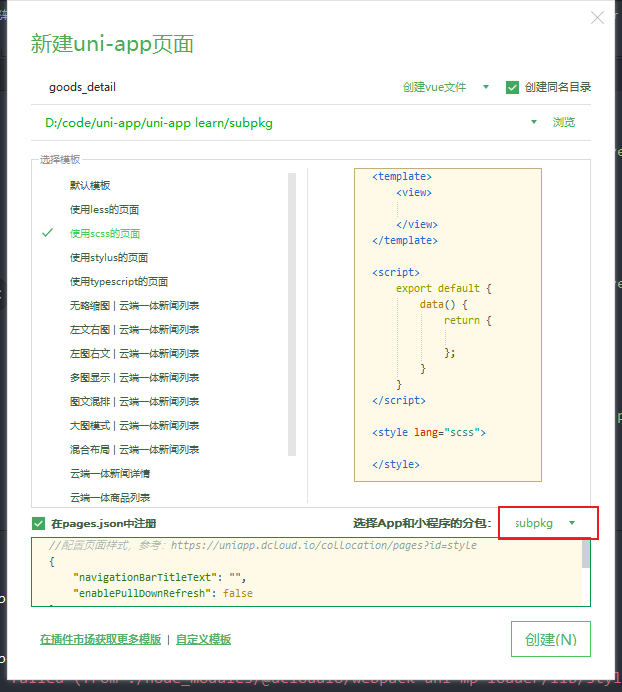
# 点击轮播图跳转到商品详情页
将 <swiper-item></swiper-item> 节点内的 view 组件,改造为 navigator 导航组件,并动态绑定 url 属性 的值。因为 view 不能实现跳转
<swiper :indicator-dots="true" :autoplay="true" :interval="3000" :duration="1000">
			<swiper-item v-for="(item, i) in swiperList" :key="i">
				<navigator class="swiper-item" :url="'/subpkg/goods_detail/goods_detail?goods_id=' + item.goods_id"><image :src="item.image_src"></image></navigator>
			</swiper-item>
		</swiper>
2
3
4
5
# 封装 uni.$showMsg () 方法
当数据请求失败之后,经常需要调用 uni.showToast({ /* 配置对象 */ }) 方法来提示用户。此时,可以在全局封装一个 uni.$showMsg() 方法,来简化 uni.showToast() 方法的调用。
在
main.js中,为uni对象挂载自定义的$showMsg()方法://封装提醒框方法 uni.$showMsg = function(title = '数据请求失败',duration = 1500){ uni.showToast({ title, duration, icon:'none' }) }1
2
3
4
5
6
7
8在需要提示消息的时候,直接调用
uni.$showMsg()方法即可methods: { async getSwioerList() { const { data: res } = await uni.$http.get('/api/public/v1/home/swiperdata'); console.log(res) //请求失败 if (res.meta.status !== 200) { /* return uni.showToast({ title:'数据请求失败', // 提示框内容 duration: 1500, //提示框多久消失 毫秒 icon:'none' //提示框图标 }); */ return uni.$showMsg() } this.swiperList =res.message uni.$showMsg('数据请求成功!') console.log(this.swiperList) } }1
2
3
4
5
6
7
8
9
10
11
12
13
14
15
16
17
18
# 分类导航区域
# 获取首页分类选项数据
在 home.vue 定 data 数据
//分类导航列表
navList:[]
1
2在 onLoad 调用获取数据方法
//获取分类导航列表
this.getNavList()
1
2在 methods 中定义获取数据的方法
//获取分类导航数据
		async getNavList() {
			const { data: res } = await uni.$http.get('/api/public/v1/home/catitems')
			// console.log(res)
			if(res.meta.status !== 200){
				return uni.$showMsg()
			}
			uni.$showMsg("获取数据成功")
			this.navList = res.message
			console.log(this.navList)
		}
1
2
3
4
5
6
7
8
9
10
11
# 渲染分类导航 UI 结构
在 template 中 view 渲染
		<!-- 分类导航区 -->
		<view class="nav-list">
		   <view class="nav-item" v-for="(item, i) in navList" :key="i">
		     <image :src="item.image_src" class="nav-img"></image>
		   </view>
		</view>
1
2
3
4
5
6修改样式
.nav-list {
	display: flex;
	justify-content: space-around;
	margin: 15px 0;
	.nav-img {
		width: 128rpx;
		height: 140rpx;
	}
}
1
2
3
4
5
6
7
8
9
# 点击第一项,跳转到分类页面
给 nav-item 绑定点击事件
<view class="nav-item" v-for="(item, i) in navList" :key="i" @click="navClickHandler(item)" >1定义 navClickHandler 方法
//根据用户点击的分类导航跳转到对应的页面
		navClickHandler(item){
			if(item.name === '分类'){ //判断是否是分类导航图标
				uni.switchTab({
					url:'/pages/cate/cate' //跳转到指定页面
				})
			}
		}
1
2
3
4
5
6
7
8
# 楼层区域
# 获取楼层数据
定义 data 数据
//楼层数据
floorList: []
1
2在创建钩子 调用方法
//获取楼层数据
this.getFloorList()
1
2定义方法
//获取楼层数据
		async getFloorList(){
			const {data: res} = await uni.$http.get('/api/public/v1/home/floordata')
			if (res.meta.status !== 200) {
				return uni.$showMsg();
			}
			this.floorList = res.message;
			// console.log(this.floorList)
		}
1
2
3
4
5
6
7
8
9
# 渲染楼层标题
渲染出标题图片
		<!-- 楼层区 -->
		<!-- 楼层的容器 -->
		<view class="floor-list">
			<!-- 楼层的标题 -->
			<view class="florr" v-for="(item,i) in floorList" :key='i'>
				<image :src="item.floor_title.image_src" class="floor-title"></image>
			</view>
		</view>
1
2
3
4
5
6
7
8样式
.floor-title{
	height: 60rpx;
	width: 100%;
}
1
2
3
4
# 渲染每个楼层中的图片
渲染出每个楼层中的图片
<!-- 楼层的容器 -->
		<view class="floor-list">
			<!-- 楼层的标题 -->
			<view class="florr" v-for="(item, i) in floorList" :key="i">
				<image :src="item.floor_title.image_src" class="floor-title"></image>
				<!-- 楼层图片区域 -->
				<view class="floor-img-box">
					<!-- 左侧大图片的盒子 -->
					<view class="lefi-img-box">
						<image :src="item.product_list[0].image_src" :style="{ width: item.product_list[0].image_width + 'rpx' }" mode="widthFix"></image>
					</view>
					<!-- 右侧 4个小图片的盒子 -->
					<view class="right-img-box">
						<view class="right-img-item" v-for="(item, i2) in item.product_list" :key="i2" v-if="i2 != 0">
							<image :src="item.image_src" :style="{ width: item.image_width + 'rpx' }" mode="widthFix"></image>
						</view>
					</view>
				</view>
			</view>
		</view>
1
2
3
4
5
6
7
8
9
10
11
12
13
14
15
16
17
18
19
20样式
.right-img-box {
	display: flex;
	flex-wrap: wrap;
	justify-content: space-around;
}
.floor-img-box {
	display: flex;
	padding-left: 10rpx;
}
1
2
3
4
5
6
7
8
9